
Use the ShapeAnywhere plugin in ChatGPT
After publication, install from the plugin directory, link your account, enable the CAD target and run your first image check.
Updated:
Availability
The ShapeAnywhere plugin has been submitted for public review; publication is not yet confirmed. This guide describes the route after approval. Until then use a custom MCP connection in a compatible AI client such as ChatGPT or Claude. A privately installed connection with a similar name does not prove a public listing. ChatGPT features and availability can depend on your account and workspace rules.
Install after publication
- Open ChatGPT's plugin directory and search for ShapeAnywhere. Check the name, ShapeAnywhere icon, publisher Michael Budisch, and linked website shapeanywhere.com.
- Install the plugin and link your ShapeAnywhere account through OAuth. Review permissions and approve sign-in. No permanent MCP token, mcp.json or LM Studio required.
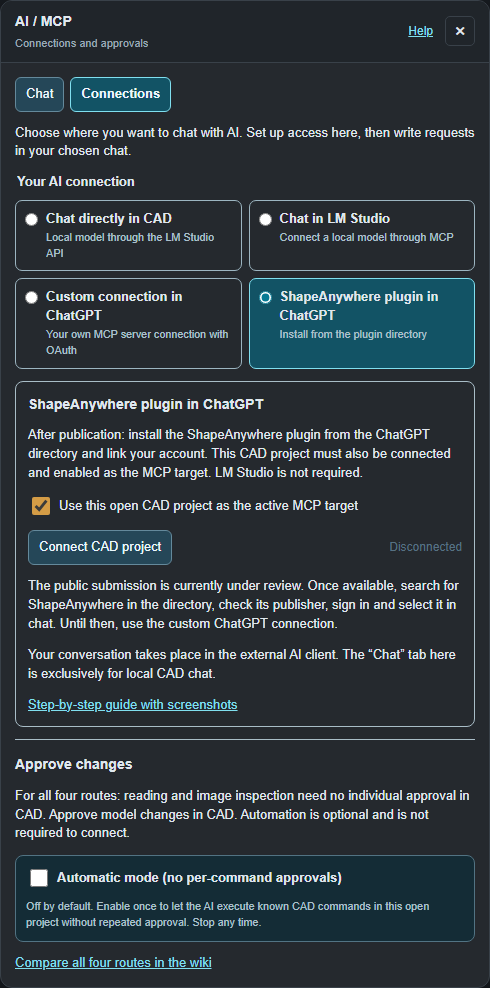
- Open your CAD project using the same ShapeAnywhere account. Choose Tools → AI / MCP → Connections → ShapeAnywhere plugin in ChatGPT, enable the project as the MCP target and connect it. Keep CAD open.
- Open a ChatGPT chat and select ShapeAnywhere from the plugin picker, using @ if appropriate. Installation alone does not mean its tools are selected in every chat.
First request
Open a project with a body and write: “Check ShapeAnywhere status, list the bodies and describe a current model view. Change nothing.” Writing also requires edit permissions and your approval in CAD or deliberately enabled automation under Connections → Approve changes.
Troubleshooting
If the public entry is still missing, use the custom MCP route. If ChatGPT cannot find tools, select the plugin in the current chat and check account linking. If tools are available but no project is found, check the separate CAD connection and active target. Use the same account on both sides. Revoke access under Account → AI / MCP connections. Correct image description proves neither dimensional accuracy nor mechanical function. Check results. The official OpenAI guide also describes creating a custom connection.