Four ways to connect AI and MCP
Compare CAD chat, LM Studio chat, cloud AI through MCP (e.g. ChatGPT or Claude) and the separate ChatGPT plugin: requirements, setup and image inspection.
Updated:
Which route suits you?
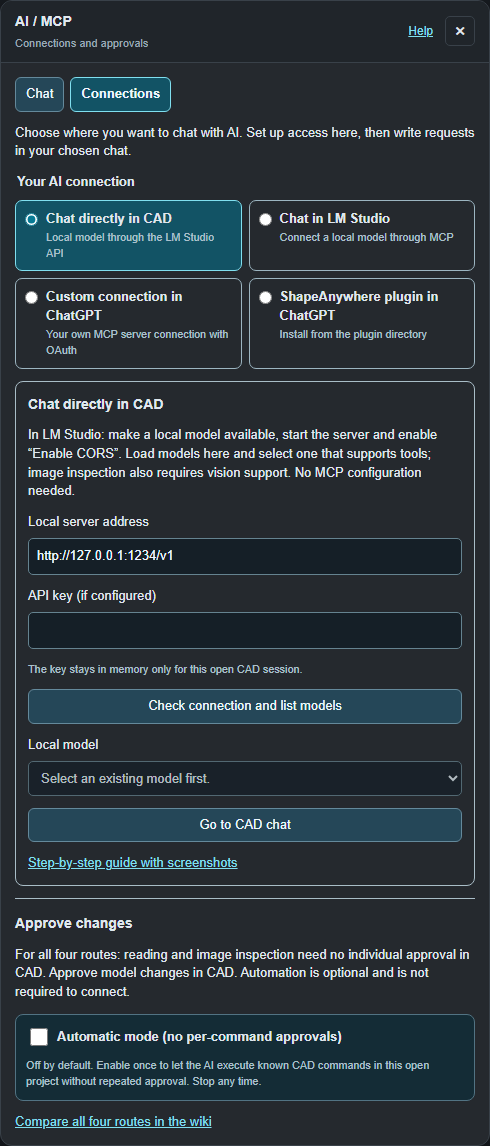
You only need one route. In CAD open Tools → AI / MCP → Connections and choose where you want to chat. The Chat tab is exclusively for integrated local chat. Switching views ends neither an ongoing conversation nor the external connection.
| Route | Where you chat | What to enable and configure | CAD as MCP target |
|---|---|---|---|
| CAD chat | Chat inside CAD | LM Studio: local API server and Enable CORS; load models in CAD | Not required |
| LM Studio chat | Chat in LM Studio | Personal MCP token in mcp.json; enable ShapeAnywhere in LM Studio chat | Connect and enable |
| Cloud AI through MCP (OAuth) | Chat in an MCP-capable cloud client (e.g. ChatGPT or Claude) | Add an MCP server with OAuth/DCR where supported, sign in and select tools | Connect and enable |
| Published ShapeAnywhere plugin | Chat in ChatGPT | After publication, install from the directory, sign in and select the plugin | Connect and enable |
The public plugin submission is currently under review. A custom MCP connection in a compatible AI client is an alternative setup route. Seeing a plugin you added yourself in your directory does not prove public publication.
Instructions for each route
- Chat directly in CAD with a local model: no extension, mcp.json or permanent MCP token required.
- Use LM Studio's own chat: MCP configuration and personal token; the local API server and CORS are not required for this route.
- Connect an external AI client through MCP: enter the MCP server URL, use OAuth/DCR where offered and sign in to ShapeAnywhere.
- Use the published plugin: install and sign in after approval; no manual server configuration.
Reading, editing and automation
Read-only tools inspect status, body data and current model images. Approve model edits in CAD by default. Under Connections → Approve changes you may optionally enable automation: at most 30 minutes and 80 editing steps for this CAD session. Automation replaces neither sign-in nor connection and is not mandatory for any route. For external clients, use the same ShapeAnywhere account in the client and in CAD. Keep exactly one intended CAD project connected as the active MCP target. Local CAD chat accesses its own open document directly and does not require this external connection.
Running requests and brief connection failures
The connection stays active while an approval or CAD calculation is pending. Approval has up to two minutes, including requests already queued; confirmed execution has a separate time limit. Expired approvals cannot be executed afterwards.
From v751, existing connections keep a stable indicator. If the MCP service is older than the CAD app and does not yet support confirmed execution start, a clear update notice appears; the request is not executed without that check. Update CAD and the MCP service together, then reconnect the intended project.
Example: You approve “Create a tray 70 × 45 × 18 mm”. If the connection briefly fails while reporting the result, the open CAD window keeps the outcome and retries delivery without modeling the same request again. Keep that window open. Reloading, signing out or a longer outage can end delivery; this is not permanent request storage.
After a time limit or uncertain response, first inspect the body list and current geometry. Errors also include a code and indicate whether no edit was committed or the outcome is still unknown. With stale references the AI rereads the relevant history, topology or sketch picks; a time limit does not automatically require selecting edges again. Check results.
A shared test with image inspection
Open a project containing a CAD body. In your chosen chat write: “Check the connection, list the bodies and describe a current isometric model image. Do not change geometry.” The model should request an actual image and describe visible features. Create a body first if the project is empty. A vision model can inspect only images that its client actually supplies as image input. ShapeAnywhere handles this directly in CAD chat. External chats also depend on their client's image forwarding and version. An image filename or preview in chat does not prove image interpretation. Check construction and results.
Data and limitations
Local CAD chat sends requests and model images to the selected local LM Studio server. With LM Studio through MCP, tool requests and results pass through the ShapeAnywhere MCP connection to the local client. With cloud clients such as ChatGPT or Claude, selected tool data and model images reach the connected AI service. Keep access tokens out of public screenshots and projects. The screenshots show the actual CAD interface in a disconnected example session; they are not generated illustrations. Each guide also explains the external application's steps. A successful connection guarantees neither a correct design nor printability.