Local AI chat without an extension
Chat with LM Studio directly in CAD, inspect actual model images and deliberately approve changes.
Updated:
Requirements
LM Studio with an already downloaded vision model and its local server running. No additional extension or MCP connection is required. Vision support allows image processing; designs and descriptions still need inspection.
Setup
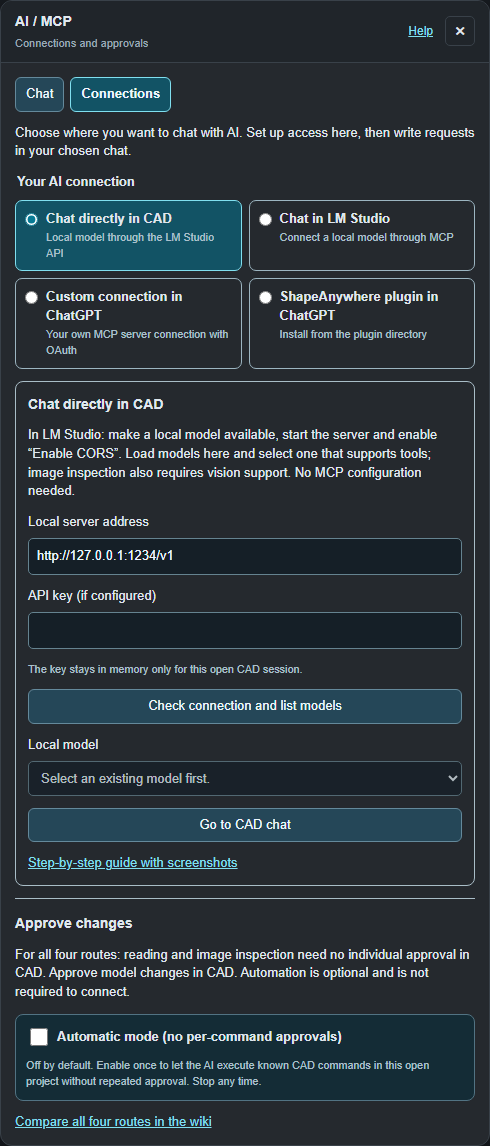
- Start the local server in LM Studio's Developer section. Its default address is http://127.0.0.1:1234. Enable CORS for browser access. Keep configured authentication enabled.
- In ShapeAnywhere open Tools → AI / MCP → Connections → Chat directly in CAD. The default address is http://127.0.0.1:1234/v1. The model server must run on the same computer; LAN and Internet addresses are not accepted here.
- If the API is protected, enter your LM Studio API key. It remains in memory for the open CAD session and is saved neither with the project nor in browser settings.
- Select Check connection and list models, then an existing vision model such as Qwen3.5-4B. This does not download a model. LM Studio may load it on the first request.
- Allow browser local network access if prompted. Do not change general browser security settings. If connection fails, check server, address, CORS and API key.
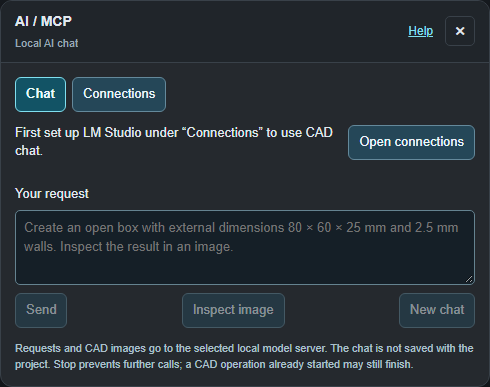
After setup, switch to Chat. It contains the conversation and requests; model selection and automation remain under Connections.
Start with an image-only check
Open a project containing a CAD body and select Inspect image. ShapeAnywhere generates an actual current model view and supplies its pixels directly to the model. This request exposes only read-only tools. A filename or a displayed preview alone does not confirm image interpretation.
Free construction
Example: “Create an open box with external dimensions 80 × 60 × 25 mm and 2.5 mm walls. Inspect the result in an image.” The model uses the same validated CAD commands as an external MCP client. General tools and parametric programs allow freely planned construction. Unless another order is specified, local chat interprets three housing dimensions as width X × depth Z × height Y and should state that assumption. “80 mm wide, 60 mm deep and 25 mm high” is clearer. Chat initially offers a small core catalog including hollowing, rectangular cuts, topology and image inspection. The model loads additional general tools through cad_load_tools when needed, for example the sketches group for sketches and extrusions. All groups remain reachable; no fixed box construction sequence is prescribed. Write commands require approval by default. Optional automation applies only to the current session and retains time and step limits. Stop prevents further model and tool calls; an already running CAD operation may still finish. Completed changes remain in the project and can be edited using Undo.
Target internal corners
A useful follow-up is: “Apply a 5 mm chamfer to the concave edges between the bottom and internal walls, and between the internal walls. Inspect the result in an image.” The model can distinguish these edges using current topology. The upper opening rim belongs to a different edge group and may be too thin for that amount. A concave internal chamfer adds material. See solid edge treatments for examples and classification limitations.
Understand limits and tool messages
The display separates model rounds and tool calls. A request stops after at most 16 model responses or 40 tool calls; each model response also has a 4096-token output limit. Conversation context is limited to 160 messages. These limits are independent of automation's 80 CAD edits and 30 minutes. Read queries and loading further tools also consume model rounds. Limit messages identify the actual cause. Truncated model tool requests are not executed. If the same tool fails twice with the same error, the request stops. Expandable tool messages show parameters and errors. Inspect the model before continuing; increasing a limit does not correct wrong tool selection.
Images and limitations
After image tools, actual PNG pixels are automatically included in the next model input. Up to three recent images remain in model context; older images are explicitly marked as omitted. Chat is not saved with the project. Starting a new chat clears model context, but deletes no bodies. In LM Studio's own chat, LM Studio controls how MCP response images reach the model. ShapeAnywhere's integrated chat uses the local model API instead and does not need the optional adapter. Correct image description proves neither mechanical function nor a successful print. See free AI modeling.