
Set up LM Studio chat through MCP
Model in LM Studio’s own chat: connect CAD, add your personal token to mcp.json and test actual model images.
Updated:
Requirements
You write in LM Studio, not in CAD chat. You need LM Studio, a model supporting tools, Internet access to the MCP connection and a ShapeAnywhere account. Image inspection also requires a vision model. The local LM Studio API server and Enable CORS are not required for this route.
Prepare CAD
- Sign in to ShapeAnywhere and open the intended project.
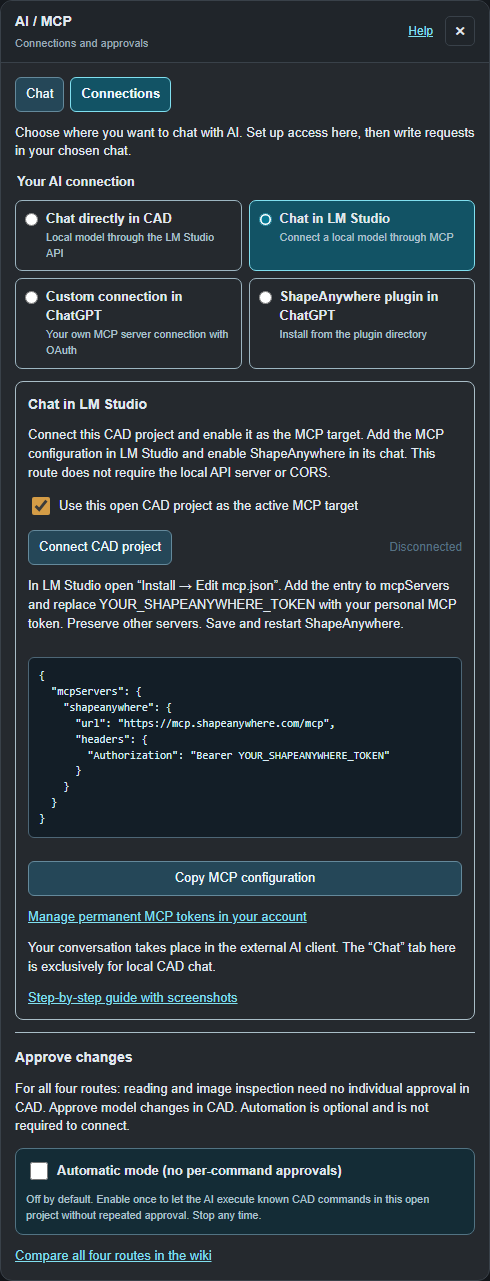
- Select Tools → AI / MCP → Connections → Chat in LM Studio.
- Enable Use this open CAD project as the active MCP target and click Connect CAD project. Keep only the intended project enabled as a target.
Configure mcp.json in LM Studio
- Create a personal permanent MCP token under Account → AI / MCP connections. Treat it like a password.
- Copy the configuration block shown in CAD. In LM Studio's plugin/tool area open Install → Edit mcp.json. Menu labels can differ between versions.
- Add the shapeanywhere entry inside mcpServers. Replace YOUR_SHAPEANYWHERE_TOKEN with your token. If the file already contains other servers, add just this entry rather than replacing the entire file. Use valid JSON without comments.
- Save and restart the ShapeAnywhere MCP connection in LM Studio. Select a suitable model and enable ShapeAnywhere in the current LM Studio chat.
The copied block contains a placeholder, never your actual token automatically. If this token configuration produces an OAuth warning, check the entry including its Authorization header and token; do not put the token in an OAuth client ID field.
Test actual image forwarding
Write: “List the existing bodies and describe a current isometric model image. Change nothing.” Allow required read calls in the client. A vision model can inspect only an image it actually receives. If it mentions only a filename or says it cannot see images, check your LM Studio version and compare with a directly attached image. ShapeAnywhere cannot force an external client's internal processing. Integrated CAD chat forwards pixels directly and requires no extra extension.
Edit and troubleshoot
Example: “Create an open tray, 80 mm wide, 60 mm deep and 25 mm high, with 2.5 mm walls and bottom. Check geometry and image.” Approve edits in CAD; automation under Connections is optional. If tools are missing, restart the connection and enable it in chat. For “offline”, check CAD sign-in, active target and connection. Replace revoked tokens. Compare all four routes. For more interface details see LM Studio's MCP guide.